Advertisements
Do you want local results that actually work for you? With a few simple changes to permissions, settings, and how you search, you can improve what you see on Google and Google Maps.
Google uses your location from the device, addresses saved in your account, previous activity, and IP address to estimate where you are.
If no nearby results appear, try adding your location to the search, for example, "cafes in the main square," and verify that your device is sharing a signal with the services. It's quick and usually solves the problem.
In this guide you will see practical steps This will help you fine-tune your website and web browser, optimize permissions, and use simple keywords and operators. Ultimately, you'll have techniques you can repeat whenever you need useful local information without wasting time.
Why your location matters for finding places accurately
Your location determines which local results you see. Google combines several sources to estimate your location: the location of the device, addresses saved in your Account, your previous activity and IP address.
When the device shares its location, queries about a nearby place—for example, cafes— They show results ordered by proximity and usefulness. Without that signal, Google only estimates a broad general area.
At the bottom of the results page you will see the source used: “From your device”, “Based on your locations”, “Based on your previous activity” or “From your internet address”.
Google also calculates a minimum area to protect privacy: at least 3 km² and 1,000 usersIf you want to refine your Google search, enable location services or add the... city in your consultation.
- The device's signal is the strongest for obtaining useful results.
- Adding the city helps when you travel or the signal is unavailable.
- Understanding these sources allows you to correct quick changes in the results.
Adjust your location and privacy settings for reliable local results
Activate and review location permissions so that your device delivers more reliable signals to services. Start with Android: go to Settings > Location > App permissionsChoose Chrome, Google, or Google Maps and select Allow either Decline.
On your computer, control permissions from the bar For addresses: Site information > Site settings > Location and decide if google.com can access.
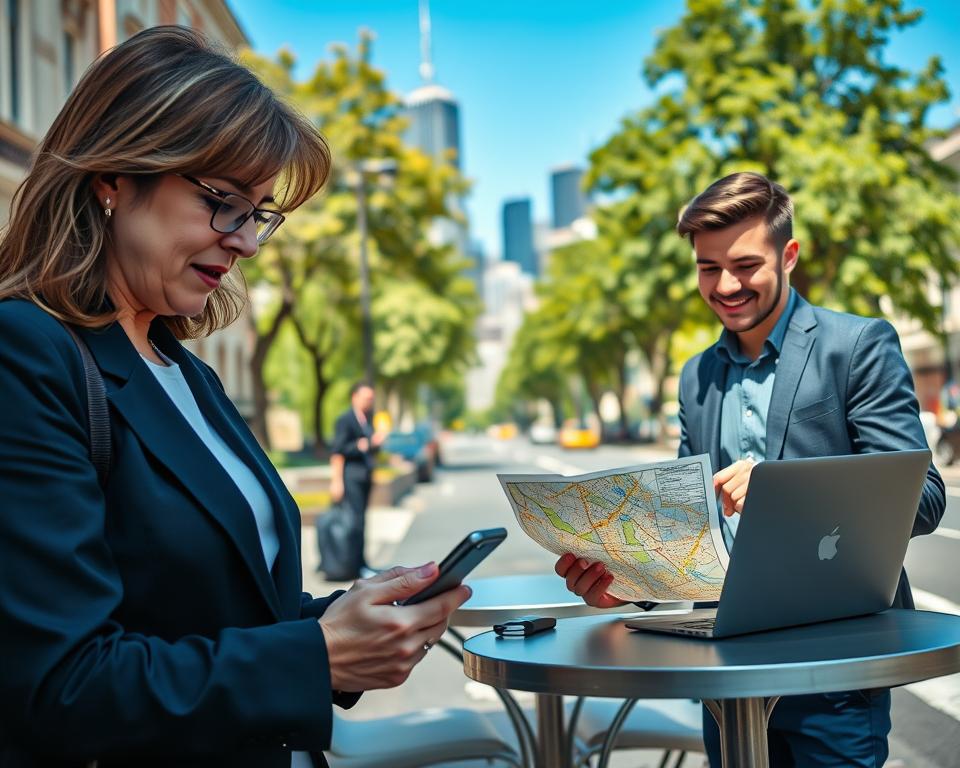
If you're using a browser on Android, open google.com, tap the site information icon, and adjust permissions. Manage the Google apps and Google Maps the same way: you can enable or disable permissions as needed.
“If the browser takes too long, google.com may use the last location saved in cookies; these expire after 6 hours.”
- Add home and work to your Google account to improve results in your city.
- Review Web and App Activity at myactivity.google.com to monitor the influence of your history.
- Remember: the IP address provides a general area if you do not grant access to the device.
Search techniques for precise location retrieval
A well-constructed query reduces noise and quickly leads you to the desired result. Start by using five to seven specific terms to narrow down your search intent. This improves what the search engine shows on the first screen.
Exact phrases and basic operators
If you are looking for a business or point of interest, enclose the name in quotation marks to prioritize the exact phrase.
OR and the minus sign
Use OR to include synonyms or neighborhoods and the sign – to exclude unwanted cities or terms.
Wildcard * and site:
The wildcard * helps you discover variations when you're unsure of a term. Use site: to find information within a specific website, such as schedules or reviews.
- Combine exact phrase + OR + site: for better filtering.
- Integrate these techniques with Google Maps: general test and refine with quotation marks or exclusions.
- Practical example: “specialty coffee shop” OR “single-origin coffee” - airport * Saturday hours.
These tactics sort the results and get you closer to where you need to be with fewer clicks.
If you want to delve deeper into permissions and controls, check out the Google help centers to adjust how your device and the web interact. Repeating this method improves your searches and saves time.
Practical step-by-step workflow: from “no results” to close findings
Start simple and organized: add the city or write "next to me" And check if your device is sending its location. This usually resolves generic issues instantly.
- Step 1: Repeat the query with the city or "near me".
- Step 2: On Android, check: Settings > Location > App permissions. On PC: Site information > Site settings > Location for google.com.
- Step 3: Iterate with 5–7 terms; if not present, use quotation marks and the hyphen. – to exclude areas.
- Step 4: Open Google Maps, activate layers and filters (schedules, reviews, distance) to narrow down services.
- Step 5: Look at the source at the bottom; if it shows your IP address, allow location for more accurate results.
Quick examples
- Cafeterias: Try “specialty coffee shop near me” or “specialty coffee shop [your city]”.
- Bus stops: Search for “bus stop [your city]” and filter by distance; exclude areas with “-center” if there is noise.
- ATMs: Type “24-hour ATM [your city]” and use the hours filter.
"Tip: If you still don't see results, delete old cookies and check permissions for google.com as a last resort."
If you want more resources on settings and permissions, check out this translated guide that summarizes controls and best practices.
Conclusion
Combine active location permission with specific queries and you'll see how local information improves in Search and in Google Maps.
Activate location services on your device, use the browser's address bar to grant website access, and save home and work to your Google account.
Remember that cookies can retain your last location for up to 6 hours. Monitor web and app activity at myactivity.google.com and adjust permissions when you switch environments.
This reduces the time and frequency of repeat queries. With well-aligned location, permissions, and query techniques, your results and the information you obtain will be more useful and reliable.